Unzipping files
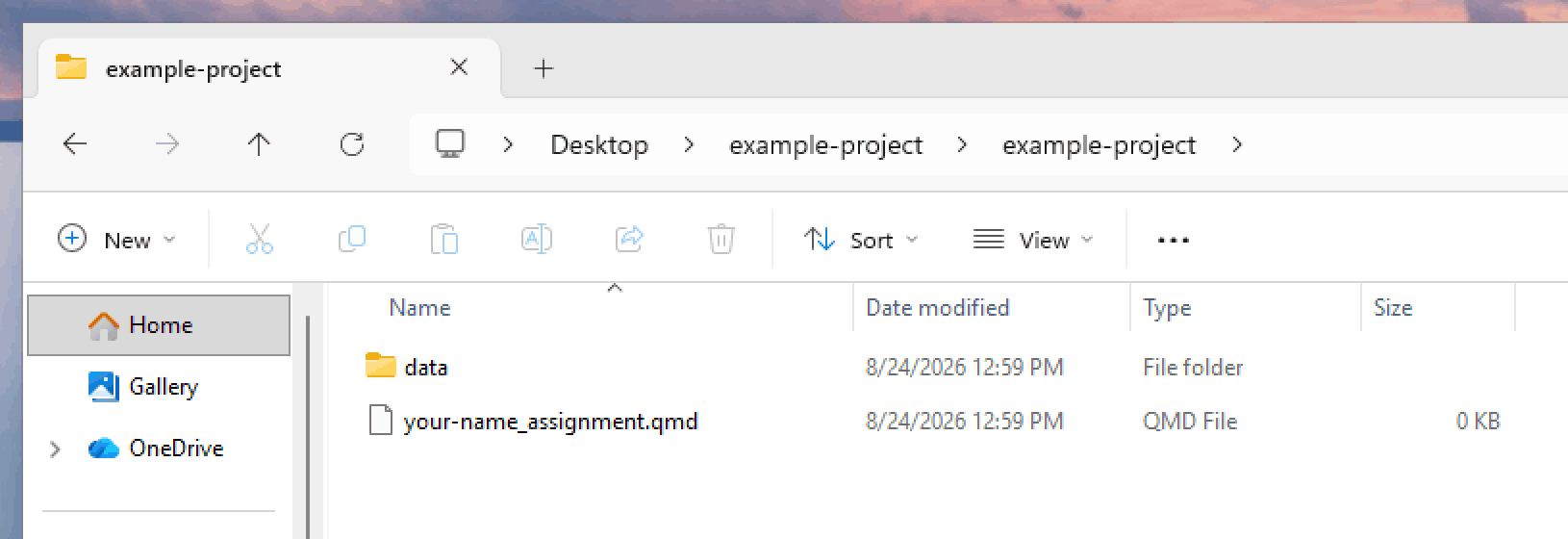
Because R projects typically consist of multiple files (R scripts, datasets, graphical output, etc.) the easiest way to distribute them to you for examples, assignments, and projects is to combine all the different files in to a single compressed collection called a zip file. When you unzip a zipped file, your operating system extracts all the files that are contained inside into a new folder on your computer.
Unzipping files on macOS is trivial, but unzipping files on Windows can mess you up if you don’t pay careful attention. Here’s a helpful guide to unzipping files on both macOS and Windows.
Unzipping files on macOS
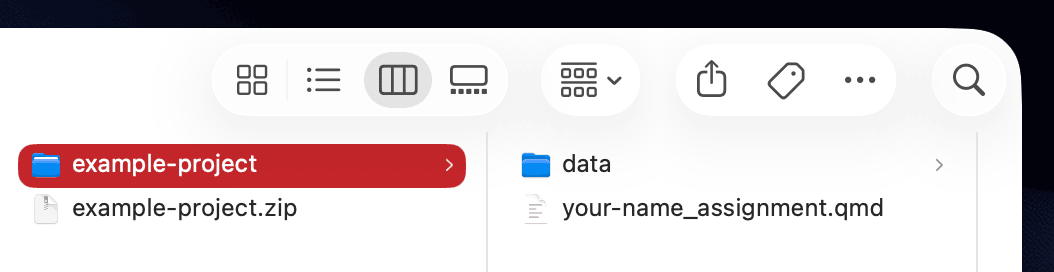
Double click on the downloaded .zip file. macOS will automatically create a new folder with the same name as the .zip file, and all the file’s contents will be inside. Drag the folder to the Positron icon in the dock to get started.
Unzipping files on Windows
tl;dr: Right click on the .zip file, select “Extract All…”, and work with the resulting unzipped folder.
Unlike macOS, Windows does not automatically unzip things for you. If you double click on the .zip file, Windows will show you what’s inside, but it will do so without actually extracting anything. This can be is incredibly confusing!
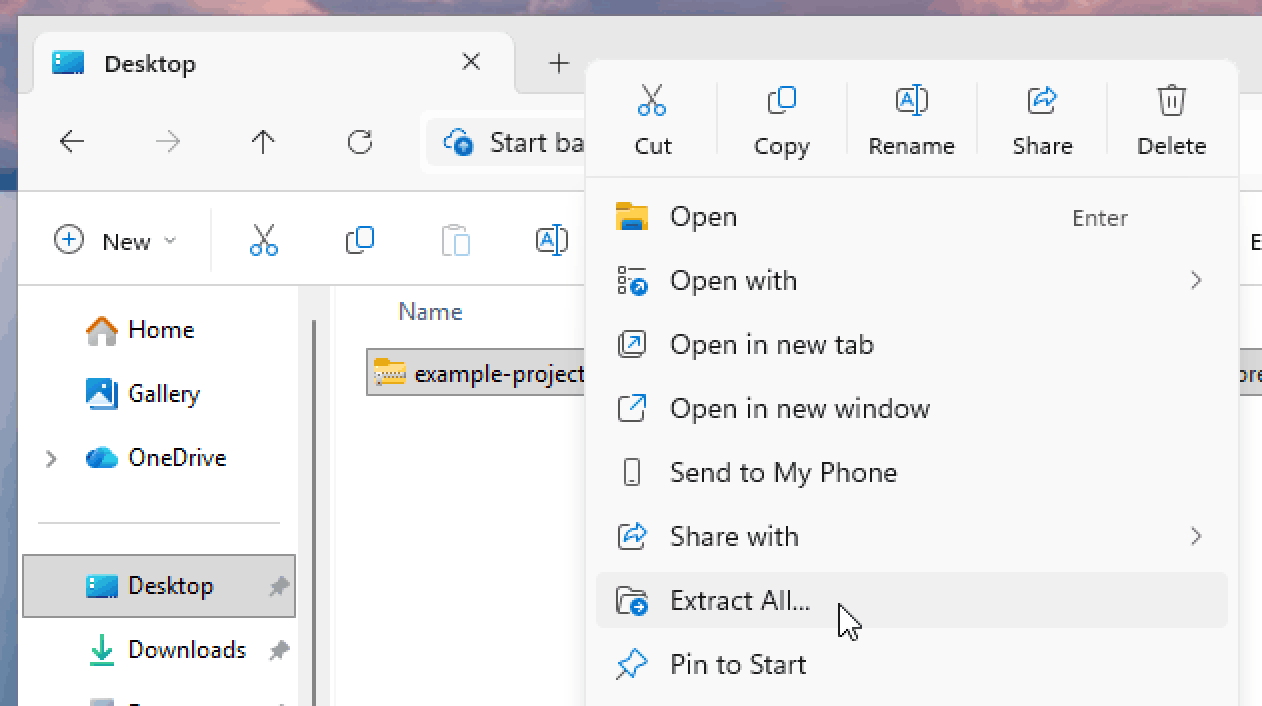
Instead, you need to right click on the .zip file and select “Extract All…”:
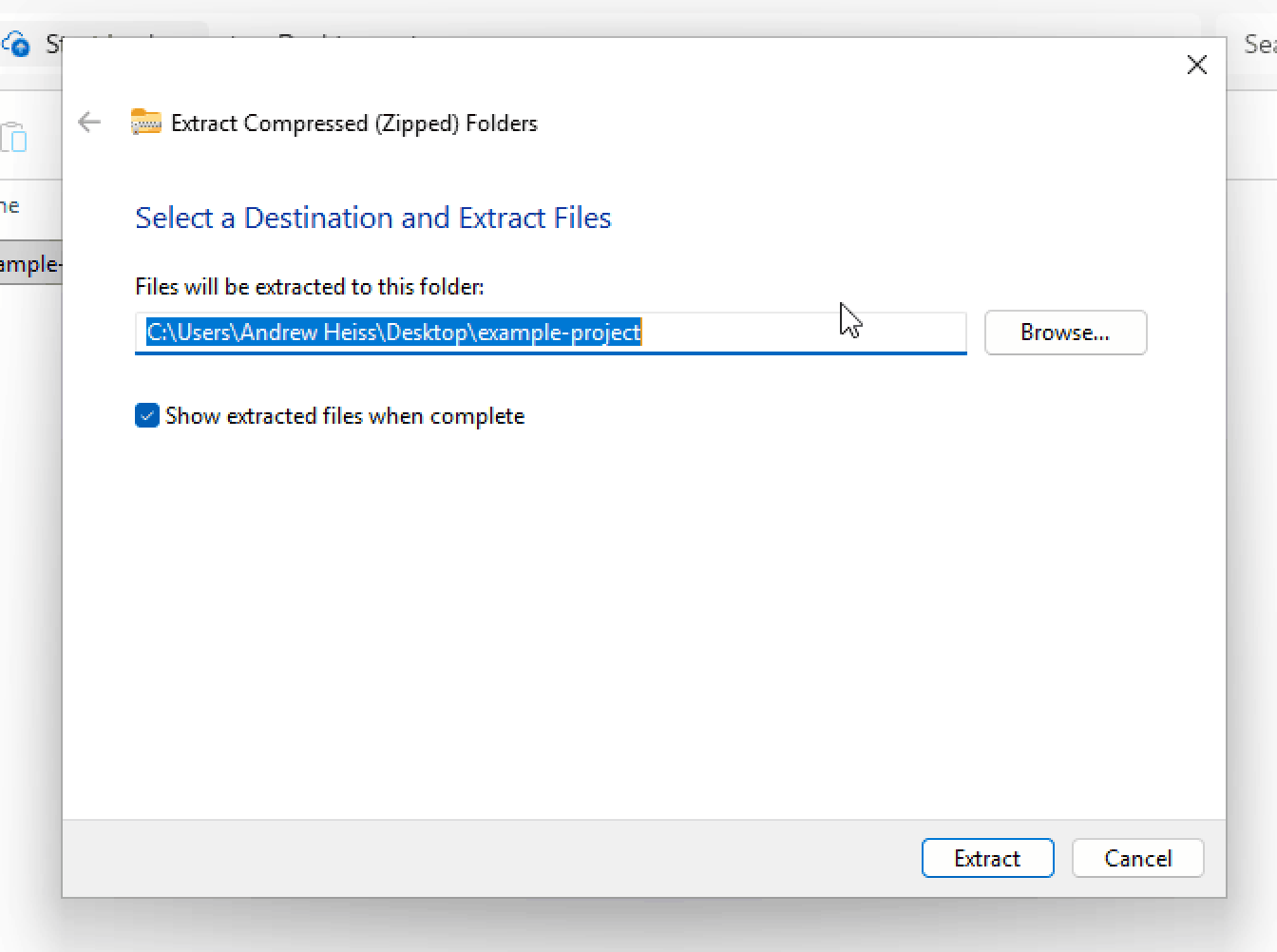
Then choose where you want to unzip all the files and click on “Extract”
You should then finally have a real folder with all the contents of the zipped file. Open that folder in Positron and you’ll be good to go.